
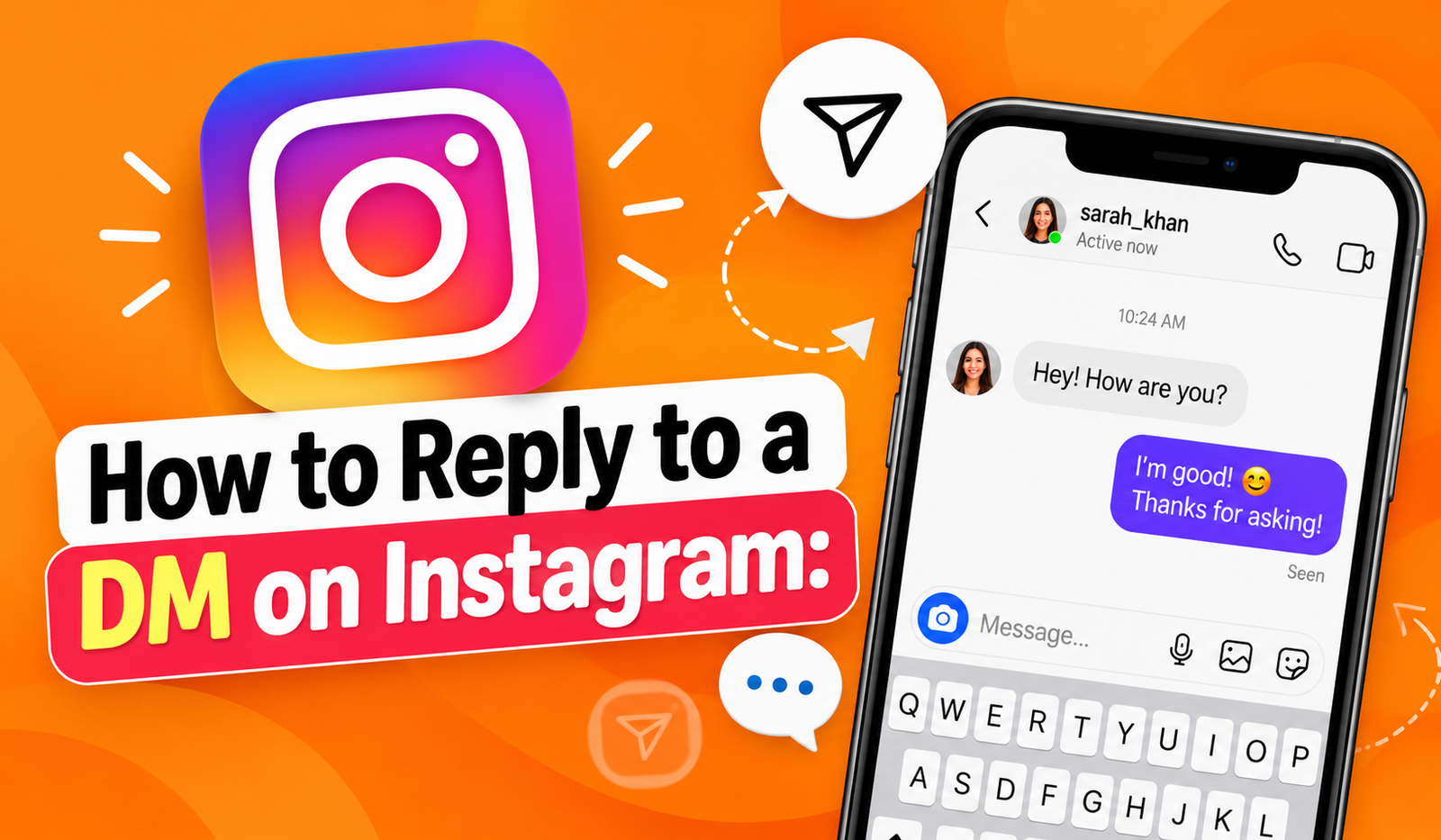
Instagram is more than a platform for sharing photos, watching Reels, and posting Stories. It is also a popular place to communicate with friends, family, customers, and followers. One of its most useful features is Instagram Direct Messages, commonly called DMs.
If someone sends you a message, you can answer it privately through your Instagram inbox. You can also reply to a specific message within a longer conversation, making it easier to keep track of what everyone is discussing.
However, many users still have questions about Instagram messages. They may not know where to find their inbox, how to respond to a specific message, or why the reply option is missing.
Quick Answer: To reply to a DM on Instagram, open the app, go to Messages, select a conversation, type your response, and tap Send. To reply to a specific message, press and hold that message, select Reply, write your answer, and send it.
This guide explains how to use Instagram DMs on Android, iPhone, and computers. You will also learn how to check message requests, respond to Stories, manage your Instagram chat, and fix common messaging problems.
1. What Does DM Mean on Instagram?
DM stands for Direct Message. It is Instagram’s private messaging feature that allows users to communicate without posting a public comment.
The meaning of DM on Instagram is simple: it is a message sent directly to another account or group of accounts.
Unlike Instagram comments, which appear below posts and may be visible to other users, DMs are part of private conversations between participants.
For example, if someone shares a picture of their garden, you could leave a public comment asking about the plants. However, if you want to ask a more detailed question privately, you can send them an Instagram DM.
What Can You Send Through Instagram DMs?
Instagram messaging supports several types of communication:
- Text messages
- Photos and videos
- Voice messages
- Emojis and reactions
- GIFs and stickers
- Shared Instagram posts and Reels
- Links and other supported content
Available features may depend on your app version and account settings.
Instagram DM vs. Instagram Comments
Both features help people communicate, but they serve different purposes.
| Feature | Instagram DM | Instagram Comments |
| Communication type | Private conversation | Public or audience-visible discussion |
| Where it appears | Instagram inbox | Below a post or Reel |
| Main purpose | Direct communication | Post engagement |
| Group communication | Supported | Through comment threads |
| Media sharing | Multiple formats | More limited |
| Best for | Personal questions and private conversations | Public feedback and reactions |
If you want to discuss something privately, using Instagram Direct is usually more suitable than leaving a public comment on Instagram.
2. How to Reply to a DM on Instagram?
Replying to Instagram messages is a straightforward process. You do not need special tools or technical knowledge.
Step 1: Open the Instagram App
Launch Instagram on your Android phone or iPhone.
Make sure you are signed in to the correct account, especially if you manage multiple profiles.
Step 2: Open Your Instagram Inbox
Tap the Messages icon in the Instagram interface. Depending on your app version, its position or appearance may vary.
This takes you to your Instagram direct inbox, where your available conversations appear.
Step 3: Select a Conversation
Find the person whose DM you want to answer.
Tap their username or conversation to open the chat.
If you have many conversations, use the inbox search feature to locate the account.
Step 4: Write Your Message
At the bottom of the conversation, tap the message field.
Type a clear response. For example, if someone asks, “How are you?” you can reply, “I’m doing well, thanks! How about you?”
Step 5: Tap Send
Once your message is ready, tap Send.
Your reply will appear in the conversation.
You can continue chatting by sending more messages, sharing supported media, or using reactions.
How to Know If Your Reply Was Sent
After sending your message, check whether it appears in the conversation.
Instagram may also display message status information, including read receipts when enabled.
Remember that a read receipt is not always available because users can control some message privacy settings.
3. How to Reply to a Specific Message on Instagram
Sometimes, a person sends several messages before you have time to answer. If you write a general reply, they may not know which message you are talking about.
Instagram solves this problem with its message-specific reply feature.
Instead of sending a separate message, you can select an earlier message and attach your response to it.
How to Reply to a Specific Message on Android
Follow these instructions:
- Open Instagram on your Android device.
- Go to your Instagram messages.
- Select the conversation you want to open.
- Find the exact message you want to answer.
- Press and hold that message.
- Tap Reply from the available options.
- Write your response in the message field.
- Tap Send.
Instagram will display the original message alongside your reply, helping the recipient understand the conversation.
You may also be able to swipe a message to start replying, depending on your app version.
Fone Tips+1
How to Reply to a Specific Message on iPhone
The process is almost identical on an iPhone.
Open Instagram and visit your inbox. Select the chat and locate the message you want to answer.
Press and hold the message, then tap Reply. Type your answer and send it.
Some iPhone versions also allow you to swipe right on a received message to reply quickly.
For example, someone might send these messages:
“Are you available today?”
“Can you share the details?”
“What time should we meet?”
You can reply directly to the final question without confusing your response with the earlier messages.
How to Cancel a Specific Message Reply
If you select the wrong message, you do not have to send your reply.
Look for the small X or cancel control beside the quoted message preview. Tap it to remove the selected message from your response.
You can then write a normal reply or choose a different message.
4. How to Check DM on Instagram
Before replying, you need to know where Instagram stores your messages.
Your Instagram inbox contains the conversations associated with your account. Depending on your account type and message settings, it may also include separate sections for message requests.
How to Check Direct Messages on Instagram
To find your messages:
- Open the Instagram application.
- Go to your home feed.
- Tap the Messages icon.
- Browse your available conversations.
- Select any conversation to read its messages.
This is the basic process for how to check DM on Instagram.
If someone has sent you a message that does not appear in your main inbox, check your message requests.
What Is the Instagram Direct Inbox?
The Instagram direct inbox is the main area where users can view and manage private conversations.
You can use it to read messages, reply to people, send media, and find earlier discussions.
Professional accounts may have additional inbox organization features, such as Primary and General folders.
How to Find Message Requests
Messages from people you do not follow may appear as requests instead of arriving in your normal conversations.
To check them, open your inbox and select Requests where available.
You can review the request and decide whether to accept, delete, or block the sender.
Avoid accepting suspicious messages from unknown accounts, especially when they contain unexpected links or requests for personal information.
Why Are Some Instagram Messages Hidden?
Instagram may separate certain unwanted or potentially offensive messages from regular requests.
Some accounts have additional filters for hidden words or suspicious content.
If you cannot locate a message, check the available Requests and Spam or Hidden Requests sections.
A message may also be missing because the sender unsent it or your account settings prevent certain people from contacting you.
5. How to Reply to Instagram DMs on a Computer
You do not always need a mobile phone to use Instagram messaging.
Instagram also supports direct messages through its desktop website, making it convenient to reply while working on a computer.
Reply to Instagram Messages on PC or Laptop
Follow these steps:
- Open your preferred web browser.
- Visit Instagram.
- Sign in to your account.
- Click Messages in the navigation menu.
- Select the conversation you want to open.
- Click the message field.
- Type your response.
- Press Enter or use the Send button.
Your message will appear in the conversation.
How to Reply to a Specific Instagram Message on Desktop
If you want to reply to a particular message, move your cursor over that message.
Instagram should display available message actions.
Select the Reply icon or open the message options menu and choose Reply.
Write your response and send it. The selected message will appear as part of your reply.
The desktop process is useful when you want to answer a question from earlier in a long conversation.
FlowGent AI+1
Is Instagram Chat Different on Desktop?
Instagram chat works in a similar way across mobile and desktop devices, although the layout differs.
On a computer, conversations typically appear in a sidebar, with the selected chat displayed beside them.
Some messaging tools and account settings may only be available in the mobile application.
6. How to Reply to Instagram Stories Through DMs
Instagram Stories allow users to share photos and short videos that normally disappear from public Story viewing after 24 hours.
When Story replies are enabled, viewers can respond privately.
How to Send a Reply to an Instagram Story
Open Instagram and select the Story you want to view.
If the creator allows replies, you may see a message field or another available reply control.
Tap the field, write your response, and send it.
For example, if someone shares a photograph of a flowering plant, you could ask, “What’s the name of this flower?”
Your response will be sent privately rather than appearing as a standard comment on their profile.
Why Can’t I Reply to Someone’s Story?
Several factors can affect Story replies.
The account owner may have restricted who can respond. The Story may have expired, or the available interaction options may differ for that account.
Instagram allows users to manage Story reply settings through its messaging and privacy controls.
If a Story does not have a reply option, respect the account owner’s settings rather than trying to work around them.
Can You Reply to a Story With an Emoji?
Instagram supports different Story interactions, including emoji reactions and private replies, where available.
An emoji reaction provides a quick way to respond without writing a full message.
However, a written response is more suitable when you want to ask a question or start a conversation.
7. How to Reply to Instagram Comments Using Direct Messages
Instagram comments and direct messages serve different purposes, but they can work together.
A person might leave a public comment on your post asking about a product, service, or topic.
If the question involves personal details, it may be more appropriate to continue the conversation privately.
Reply to a Comment on Instagram
Open the post containing the comment.
Find the comment you want to answer and tap Reply.
Write your response and post it.
For example:
Comment: “What is the price of this plant?”
Reply: “Thanks for asking! You can find the current price in our product details.”
This keeps the answer public so other interested users can see it.
When Should You Use a DM Instead of a Comment?
A private message is useful when the conversation involves order details, personal contact information, or questions that do not need a public response.
For example, a customer might ask you to confirm their delivery address. That information should not be shared in public Instagram comments.
You can invite them to use DMs without asking them to post private details.
How to Manage Insta Comments and Messages
If you manage a creator or business profile, check both comments and direct messages regularly.
Answer common questions clearly, avoid using the same generic response everywhere, and keep the conversation relevant.
Public replies help other people find answers, while private Instagram chat is better for individual support.
8. How to Use Instagram DM Features for Better Conversations
Instagram provides additional messaging features that make everyday conversations easier.
You can react to a message, share media, and use different communication formats.
React to an Instagram Message
Sometimes, a message does not need a written response.
For example, if someone says, “Thank you for your help,” you may want to respond with a heart or another suitable emoji.
To add a reaction, open the conversation and press and hold the message.
Select an available emoji reaction.
Send Photos and Videos in Instagram Chat
Instagram allows users to share supported media through direct messages.
You can use the available image or camera controls to select content.
Before sharing a photo, check that it does not contain private information you would rather keep to yourself.
Send a Voice Message
Voice messages can be useful when typing a long explanation would be inconvenient.
Open a conversation and look for the microphone control.
Follow the available recording and sending instructions.
Always review the conversation before sending sensitive personal details.
Use GIFs and Stickers
GIFs and stickers provide another way to respond to messages.
Instagram supports these formats in many messaging conversations.
Meta has also expanded message-specific replies to support media such as GIFs, photos, videos, and voice messages.
About Facebook
Can You Edit a Sent Instagram Message?
Instagram allows users to edit eligible messages within 15 minutes after sending them.
Press and hold your sent message and choose Edit, if available.
Correct the text and save the changes.
This feature is helpful when you notice a spelling mistake or want to make your reply clearer.
9. Why Can’t I Reply to a DM on Instagram?
Sometimes Instagram messages do not work as expected.
You might be unable to send a reply, see an error message, or find that the message-specific reply feature is missing.
There are several possible reasons.
Your Instagram App Needs an Update
An outdated application may not support newer features or may contain bugs.
Open the Google Play Store or Apple App Store and check for an Instagram update.
Install an available official update and reopen the app.
Your Internet Connection Is Unstable
Messages need a working internet connection to reach Instagram.
If your connection drops, the message may fail to send.
Check whether other online services are working. You can also switch between Wi-Fi and mobile data to identify a connection issue.
The Account May Have Restricted Communication
Instagram provides controls that affect who can message an account.
If someone has blocked you or their messaging settings prevent communication, you may not be able to contact them.
These settings should be respected.
Instagram May Be Experiencing a Technical Problem
Sometimes, messaging features stop working because of an application bug or a temporary service problem.
Try closing and reopening Instagram.
If the problem continues, check the platform’s official support information.
Your Account May Have a Temporary Restriction
Instagram may restrict certain account actions when it detects activity that could violate its rules.
If you believe a restriction was applied incorrectly, review your Account Status and any available official appeal process.
An Instagram appeal should be submitted through genuine Instagram or Meta support channels, not through websites that promise to remove restrictions in exchange for your password.
10. How to Fix Instagram Direct Message Reply Problems
If your Instagram DM reply is not working, start with the simplest troubleshooting steps.
Avoid installing unfamiliar tools or changing multiple settings at once.
Troubleshooting Checklist
| Problem | Possible Cause | Suggested Solution |
| Reply option missing | App issue or unavailable feature | Update Instagram and try again |
| Message not sending | Internet problem | Check your connection |
| Instagram inbox not loading | Temporary application error | Restart the app |
| DM not appearing | Message request filtering | Check Requests and Spam |
| Cannot contact an account | Privacy or messaging restrictions | Respect the account’s settings |
| Instagram chat freezes | App or device issue | Restart your device |
| Message status not showing | Read receipt settings | Review messaging preferences |
Check Instagram’s Latest Version
Keeping Instagram updated is one of the easiest ways to reduce common messaging problems.
Updates may include bug fixes, security improvements, and changes to existing features.
Use the official app store for your device instead of downloading modified Instagram applications.
Restart Your Phone
If Instagram stops responding, close the app and restart your device.
Open Instagram again and test the messaging feature.
A restart can resolve some temporary application problems.
Clear Instagram Cache on Android
Android devices allow users to clear an app’s cache through system settings.
Open your device’s Settings application, find Instagram under Apps, and look for Storage or Storage and cache.
Choose Clear cache if available.
Menu names depend on the phone manufacturer and Android version.
Clearing the cache can remove temporary application files, but it does not guarantee that a messaging issue will be fixed.
Report a Problem to Instagram
If none of the steps work, report the issue through Instagram.
Open your profile, visit the app’s settings, and look for Help or Report a problem.
Describe what is happening and include relevant details about the feature.
Avoid including passwords or other sensitive information in screenshots.
11. How to Manage Instagram Messages and Privacy Settings
Instagram offers settings that help users control their inbox and decide who can contact them.
Understanding these tools is important, especially if you receive messages from unfamiliar accounts.
Control Who Can Send You Messages
Open your Instagram profile and go to Settings and activity.
Look for Messages and story replies, then open the available message request controls.
Depending on your account and app version, you can choose how certain message requests are handled.
These settings help you manage unwanted communication.
What Are Instagram Read Receipts?
A read receipt is an indicator that tells another participant when you have viewed a message.
Instagram lets users manage read receipts for all chats or individual conversations.
To find the general setting, go to Messages and story replies and look for Show read receipts.
You can change the available preference at any time.
About Facebook
How to Handle Unwanted Instagram DMs
Not every message deserves a response.
If you receive unwanted messages, you can use Instagram’s privacy controls to restrict, block, or report an account.
Do not share passwords, verification codes, banking details, or other private information with strangers.
Be especially careful with messages that claim your Instagram account will be deleted unless you click a link immediately.
How to Keep Your Instagram Inbox Organized
If you receive many Instagram messages, a few simple habits can help.
Read important conversations first, use message requests carefully, and avoid leaving personal information in chats with unfamiliar users.
Professional accounts may also offer additional inbox organization features.
An organized inbox makes it easier to find older conversations and respond to people without losing track of important questions.
12. Tips for Writing Better Instagram DM Replies
Knowing how to reply to a DM on Instagram is useful, but the way you communicate also matters.
A good reply should be clear, respectful, and related to the message you received.
Keep Your Replies Clear
Avoid making simple conversations unnecessarily complicated.
If someone asks a direct question, provide a direct answer.
For example, if a customer asks, “Is this plant suitable for indoor use?” explain the plant’s light and care requirements rather than responding with a generic sales message.
Use a Friendly and Natural Tone
Instagram conversations often feel more relaxed than formal emails.
You can use simple language while remaining respectful.
A friendly response helps make your message easy to understand.
Avoid Sending Repeated Messages
Sending the same message repeatedly may annoy the recipient.
Give people reasonable time to respond, especially when they are not expecting an urgent conversation.
Check Your Message Before Sending
Read your message once before tapping Send.
Check names, links, important details, and spelling.
This is especially useful when replying to customers or answering questions on a professional account.
Use Message-Specific Replies When Needed
If several topics are being discussed in the same Instagram chat, reply directly to the relevant message.
This helps both people understand the conversation and reduces confusion.
13. How Businesses and Content Creators Can Manage Instagram DMs
Instagram direct messages are also useful for businesses, creators, online stores, and service providers.
A customer might send a message asking about product availability, prices, delivery options, or order details.
Responding clearly can make the buying process easier.
Answer Customer Questions Clearly
Customers usually want a helpful answer rather than a lengthy promotional message.
If someone asks about delivery, explain the areas you serve and where they can find accurate delivery charges.
If someone asks about a product, provide the relevant specifications and any important limitations.
Use Saved Replies for Common Questions
Some professional Instagram accounts support saved or quick replies.
These features allow businesses to prepare responses to common questions, such as operating hours, delivery policies, and product information.
Check your professional account tools for available saved reply options.
Review saved responses regularly to make sure the details remain accurate.
Keep Business Conversations Professional
Even when using casual language, business messages should be respectful.
Avoid making promises you cannot support, such as guaranteed delivery times or product results.
If you cannot answer a question immediately, explain what information is missing rather than providing a guess.
When to Move a Conversation Away From Instagram
Some discussions are easier to complete through an official website or customer support channel.
For example, payment processing may be safer through a secure checkout page than through an informal DM.
Always direct customers to verified business channels and avoid asking them to share sensitive payment information in Instagram chat.
14. Frequently Asked Questions About Instagram DMs
How do I reply to a DM on Instagram?
Open Instagram, select Messages, choose a conversation, type your response in the message field, and tap Send. To reply to a particular message, press and hold it, select Reply, and enter your answer.
What is the meaning of DM on Instagram?
DM means Direct Message. It is Instagram’s private messaging feature, allowing users to communicate directly with one another or within a group conversation.
How do I reply to one specific message on Instagram?
Open the conversation and find the message you want to answer. Press and hold it, tap Reply, type your response, and send it. The original message will be attached to your reply.
How can I check my Instagram messages?
Open Instagram and tap the Messages icon. Your available conversations will appear in the inbox. Check Requests if you cannot find a message from an unfamiliar account.
Can I reply to Instagram DMs on a laptop?
Yes. Visit Instagram.com, sign in, select Messages, open a conversation, and type your response. You can also reply to a specific message using the available message actions.
Why is the Reply option missing on Instagram?
The feature may be unavailable because of an outdated app, a temporary technical issue, or differences between Instagram versions. Update the official app and try again.
Can I reply to an Instagram message without following the person?
In many cases, yes. Depending on message request settings, you may receive and respond to messages from accounts you do not follow. Some conversations may need to be accepted first.
Can I reply to Instagram Stories privately?
Yes, when the Story creator allows replies. Open the Story, use the available reply field, write your message, and send it.
Can I send an emoji instead of a text reply?
Yes. Instagram supports emoji reactions and other messaging formats. Press and hold a message to view available reactions, or use emojis in your written response.
What is the difference between Instagram Messenger and Instagram Direct?
Instagram Direct is Instagram’s private messaging feature. People sometimes refer to it as Messenger Instagram because of Meta’s messaging features and earlier Messenger integration. However, Instagram messaging is accessed through Instagram itself.
Can I edit a message after sending it?
Yes. Instagram supports editing eligible messages for up to 15 minutes after sending them. Press and hold your message and choose Edit when available.
How do I fix Instagram messages that are not working?
Update Instagram, check your internet connection, restart the app, and review your message request settings. If the issue continues, report it through Instagram’s official support tools.
15. Final Thoughts
Learning how to reply to a DM on Instagram is simple once you understand how the messaging feature works.
For an ordinary reply, open your Instagram inbox, choose a conversation, type your message, and send it. If you want to answer a particular message, press and hold it and use the Reply option.
You can also manage Instagram messages on your computer, respond to Stories when permitted, and organize conversations using the available inbox features.
If something does not work, check your app version, internet connection, and messaging settings before trying more advanced troubleshooting.
The most important thing is to keep your conversations clear, respectful, and secure. With these basic habits, Instagram Direct can be a useful tool for everyday communication, customer support, and staying connected with people who matter to you.
Suggested Internal Links for SEO
To improve your article’s usefulness and topical coverage, connect it to relevant Instagram guides on your website:
- How to Clear Cache on Instagram
- How to See Recently Followed Accounts on Instagram
- How to Grow Instagram Followers Organically
- Instagram Bio Ideas: Creative and Unique Examples
- How to Manage Instagram Comments
Use descriptive anchor text and link only to pages that actually exist.
Suggested Image Alt Text
Featured Image: How to reply to a DM on Instagram step-by-step guide
Supporting Image 1: Instagram direct inbox showing message conversations
Supporting Image 2: How to reply to a specific Instagram message on Android and iPhone
Supporting Image 3: Instagram direct messages on a desktop computer
Supporting Image 4: Instagram message requests and privacy settings
SEO Publishing Notes
The primary keyword is included in the H1, a question-based H2, the introduction, the conclusion, and metadata. Supporting terms such as Instagram messages, meaning of DM on Instagram, inbox Instagram, Instagram Direct inbox, Instagram chat, Instagram comments, and Instagram appeal are covered in relevant sections rather than repeated unnaturally.
The article also provides direct answers suitable for featured snippets and AI-powered search responses. Before publishing, confirm the precise Instagram interface labels against the current version of the app, since features and menus can change.
Ref